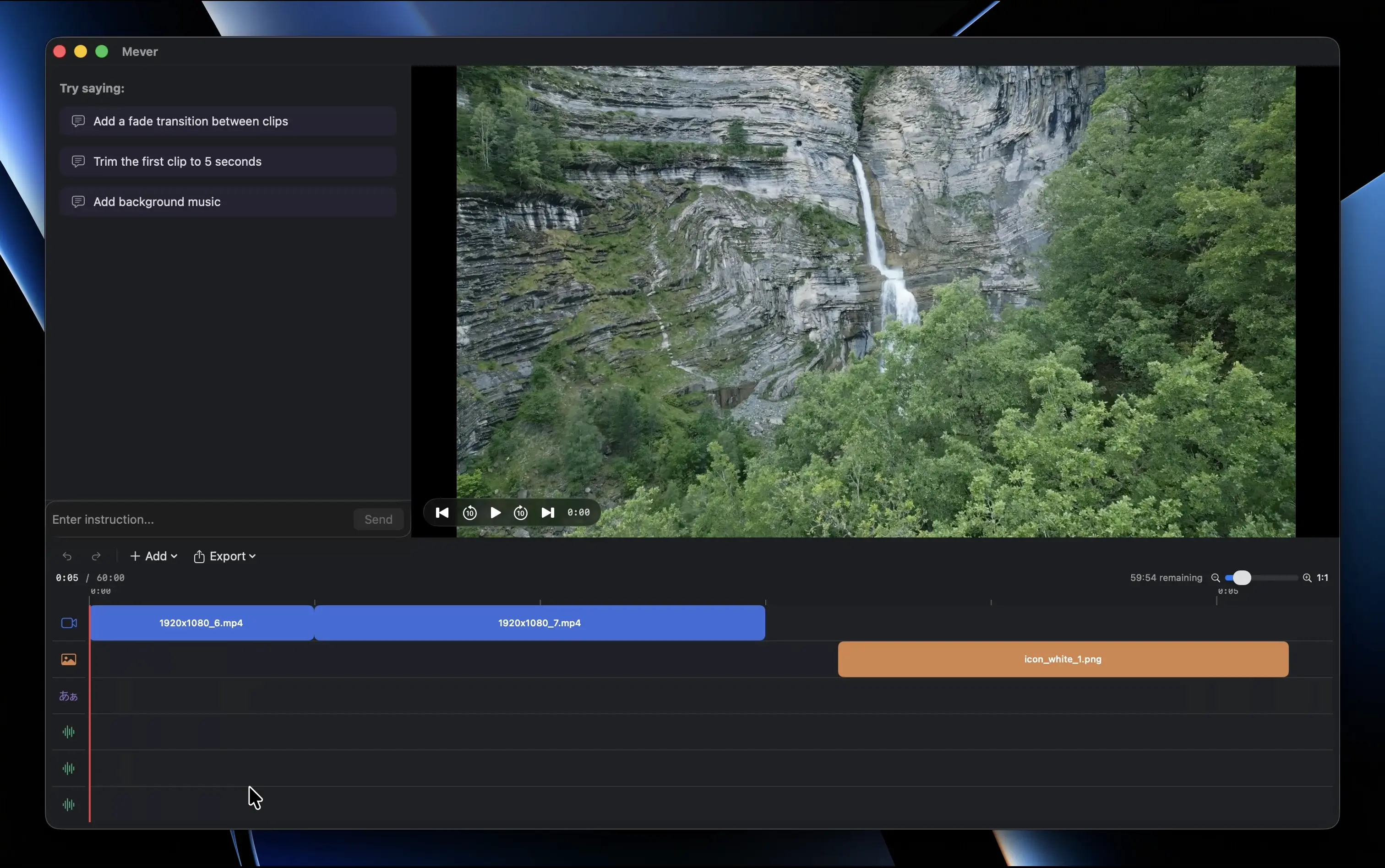
Video editing shouldn't feel like a second job
You have a story to tell. But between the timeline wrestling and the caption workflow, the tool gets in the way of the craft.
Timeline editing takes forever
Dragging clips, adjusting cuts frame by frame, splitting and rearranging — traditional editors demand hours of manual timeline work for a 10-minute video.
Captioning is a separate chore
Export audio, upload to a transcription tool, download the SRT, import it back, and manually fix the timing. Every. Single. Video.
Your hardware sits idle
Most editors rely on cloud rendering or CPU-only processing, leaving your Mac's GPU unused while you wait for exports.
Unlike Final Cut Pro or DaVinci Resolve, Mever requires no timeline knowledge to get started. Unlike CapCut, your footage is processed entirely on your Mac — it never touches a remote server.
Tell Mever what you want.
Watch it happen.
No plugins. No cloud uploads. Just type and render.
Features
Natural language commands
Type what you want in any language — "trim the first 3 seconds", "字幕をつけて", or "corta los primeros 3 segundos" — and Mever executes it.
Auto captions
Transcribe your audio and drop captions onto the timeline — timing and placement included.
Silence removal
Cut silence, filler words, and dead air from your footage in one command.
Export anywhere
Render to MP4, MOV, or WebM. Presets for YouTube, Instagram, and TikTok built in.
macOS native
Built with Swift and Metal. Uses your Mac's GPU for fast rendering without draining battery.
Your files stay local
All processing happens on your Mac. No uploads, no cloud dependency, no privacy concerns.
Pricing
Start free, upgrade when you need more credits.
What is a credit? Credits measure how much AI processing you use. Simple edits use fewer credits; longer or more complex tasks use more. Credits reset on the 1st of every month.
Payment info is required to sign up, but you will not be charged or auto-upgraded.
Mever Free
Roughly 2 short videos per month
- 1,000 AI credits per month (resets monthly)
- Edit by typing commands
- Export up to 1080p
- Export with Mever watermark
- macOS native performance
Mever Standard
A few long-form videos per month
- 20,000 AI credits per month (resets monthly)
- Edit by typing commands
- Export up to 4K
- No watermark on exports
- macOS native performance
- Priority support
Frequently asked questions
What is Mever?
Mever is a Mac video editor you control by typing instead of dragging clips on a timeline. Tell it what you want — trim, cut, add captions, rearrange — in any language, and it does the edit.
Does Mever work without a subscription?
Yes. The Free plan gives you 1,000 credits every month. Download and start editing right away — no credit card required.
What Mac do I need to run Mever?
macOS 15 Sequoia or later. Runs natively on Apple Silicon (M1+) and Intel Macs — if your Mac can run macOS 15, you're good.
Does Mever require an internet connection?
Yes, for processing your commands. When you type an instruction, our cloud API figures out what you mean. The actual rendering — encoding, compositing, exporting — happens entirely on your Mac. You also need internet to sign in.
What video formats does Mever support?
Import: MP4, MOV, and most formats supported by macOS. Export: MP4 (H.264) up to 1080p on the Free plan, and MP4 (H.264) or MOV (HEVC) up to 4K on the Standard plan.
Does the Free plan add a watermark?
Yes. Exports on the Free plan include a small Mever watermark in the corner. Upgrading to the Standard plan removes it.
What language can I use to give commands?
Any language. English, Japanese, Spanish, French, German, and many more. Just type in whatever language you're comfortable with.
Can I use Mever if I have never edited a video before?
Yes. If you can describe what you want in plain words, you can use Mever. No editing experience needed.
How is Mever different from CapCut?
CapCut is a mobile-first editor ported to desktop — your content gets processed on their servers. Mever is a native Mac app that processes everything on your machine. Your footage never leaves it. You also control Mever by typing commands, not dragging clips on a timeline.
How is Mever different from DaVinci Resolve?
DaVinci Resolve is professional-grade software — color grading, multi-track mixing, node-based compositing. Powerful, but it takes serious time to learn. Mever is for creators who want to publish YouTube videos quickly, not master a professional tool. Describe what you want and Mever does it.
How is Mever different from iMovie?
iMovie uses a simplified timeline where you drag and drop clips. Mever replaces the timeline entirely — type what you want and the edit happens. If you're making YouTube content, Mever cuts out the manual steps iMovie still needs.
What is a credit?
Credits measure how much processing each edit uses. A quick trim costs less than captioning a 30-minute video. You pay for what you use, not a flat fee.
When do my credits reset?
Credits reset on the 1st of every month. Unused credits do not roll over.
Where can I check my remaining credits?
Your remaining credits are shown in the Mever app under Settings > Credits. You will also see a warning when your balance is running low.
What happens when I run out of credits?
You can still open and view your projects, but new edits will wait until your credits reset on the 1st of next month — or you can upgrade to Standard.
Is this a subscription?
Yes. The Standard plan is billed monthly at $12/month and can be cancelled anytime. Visit your Lemon Squeezy billing portal to manage or cancel your subscription.
Will I be automatically upgraded to the Standard plan?
No. The Free plan stays free. You'd have to upgrade yourself — we'll never charge you without your say-so.
Can I get a refund?
Refunds are handled by our payment provider, Lemon Squeezy, according to their refund policy. Please contact support if you have issues.
Does my video get uploaded to a server?
No. Video processing happens on your Mac. Only the text of your commands is sent to our API so we can interpret them. Your footage never leaves your machine. See our Privacy Policy for details.
Where can I report a bug or request a feature?
In the Mever app, go to Settings > Feedback. You can also email the support address on our website. Either way, it goes straight to the dev team.
For details on how your data is handled, see our Privacy Policy.